
The clinic dashboard that shows your whole day at a glance
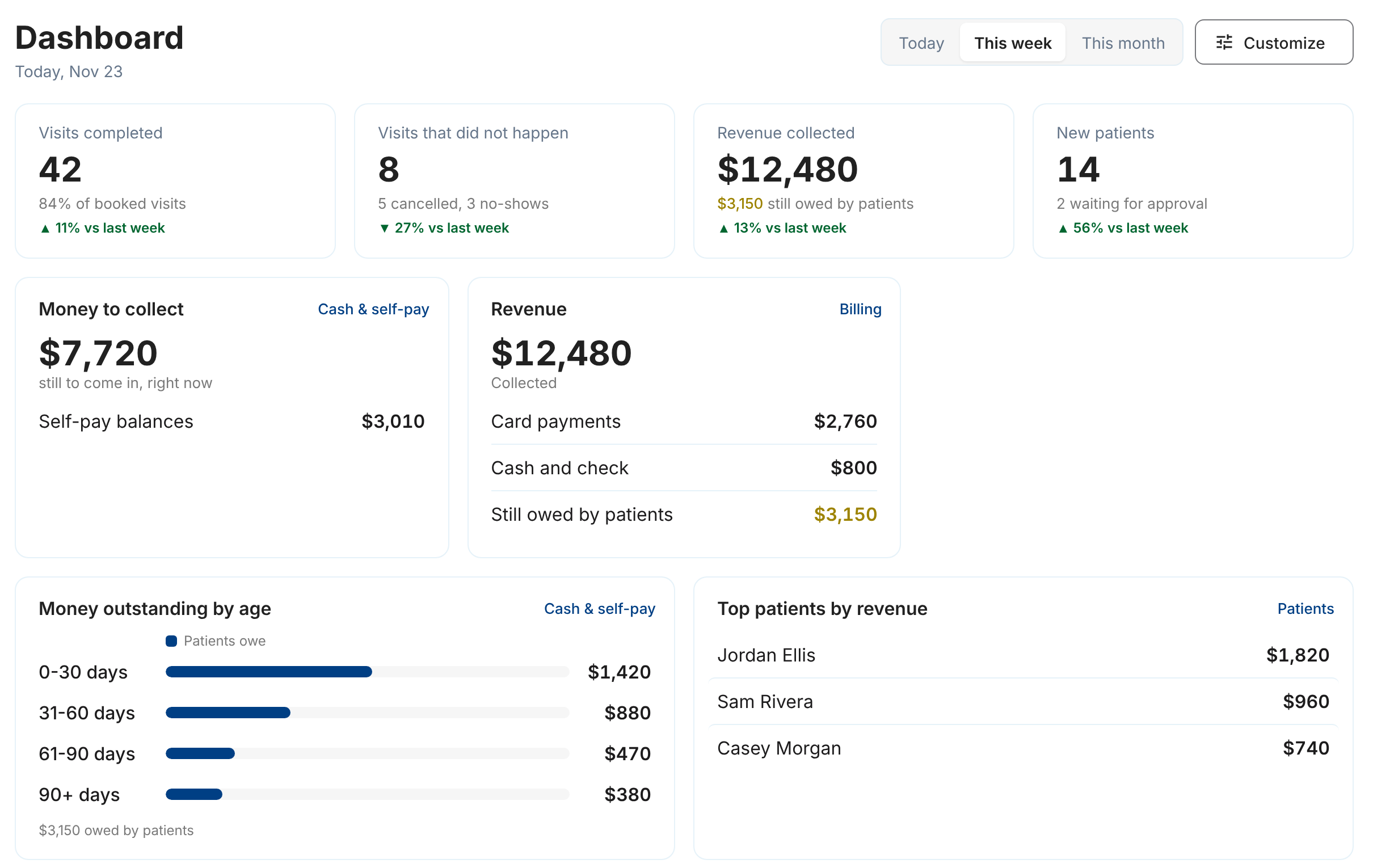
See today's visits, what needs follow-up and what money is still to come in, the moment you sign in to Othisis. Each person on your team arranges it their own way.
Simple questions shouldn't take three screens
How many patients are coming in today? Who didn't show up last week? Which co-pays are still open? In most clinics, answering means jumping between the calendar, the patient list and the billing screen, or building a spreadsheet nobody has time to keep up. The Othisis dashboard puts those answers on the first screen you see.
Make it yours
Every role needs a different view. The front desk cares about today's schedule. The office manager watches follow-ups. The owner wants the month's revenue. Each user builds the dashboard that fits their job.
- Add and remove widgets from a drawer grouped by visits, patients and money.
- Drag widgets into any order, or reset to the default layout.
- Switch charts between bars and pie with one click.
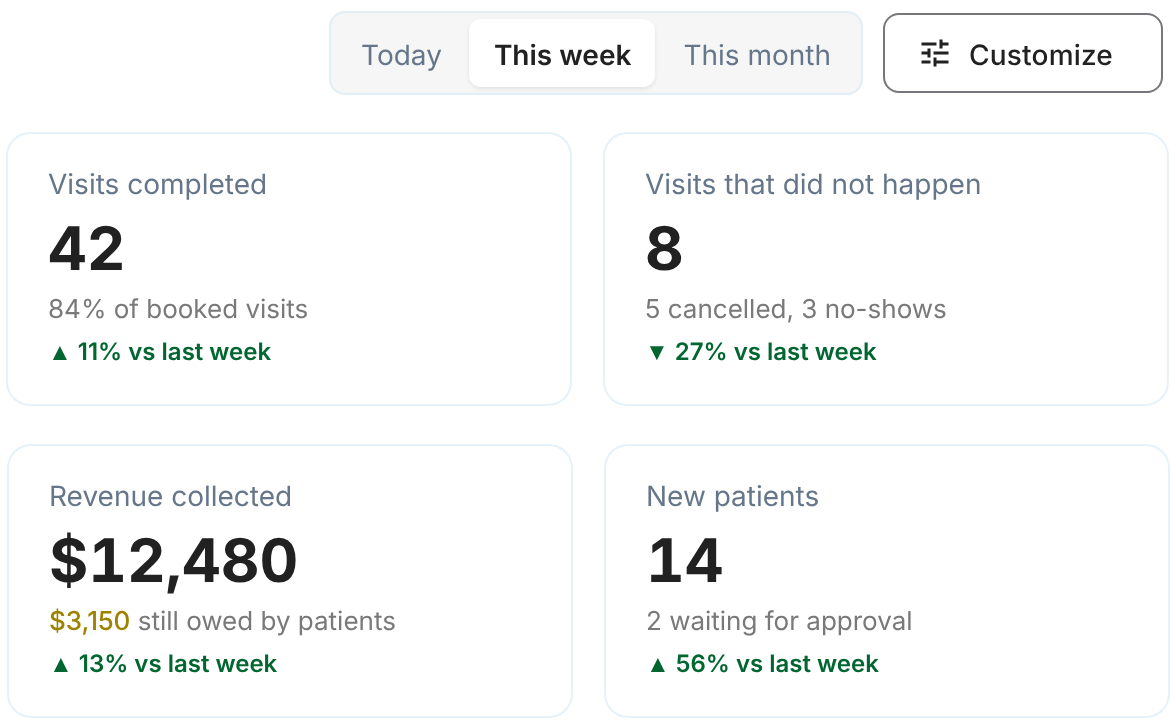
- Pick a time range: today, this week or this month, with the change against the last period.
- Your layout is yours. Changing it doesn't change anyone else's.
Never lose track of a visit
Know how the day is going without opening the calendar, and catch the visits that fell through the cracks.
- Today's visits: the day's schedule with each visit's status, linked to the calendar.
- Visits completed and did not happen: counts, share of booked visits and a visits-by-day chart.
- No-shows you can trust: a visit counts as a no-show only when your staff mark it, so the number matches the calendar. One click opens the visit.
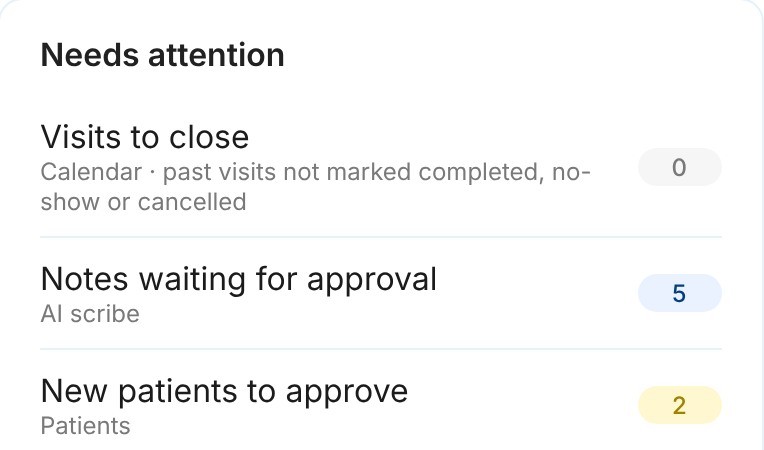
- Visits to close: past visits nobody has marked completed, no-show or cancelled yet, so your records stay clean.
- Follow-ups and new patients: upcoming follow-up visits, new patients in the period and those waiting for approval.
See where the money is
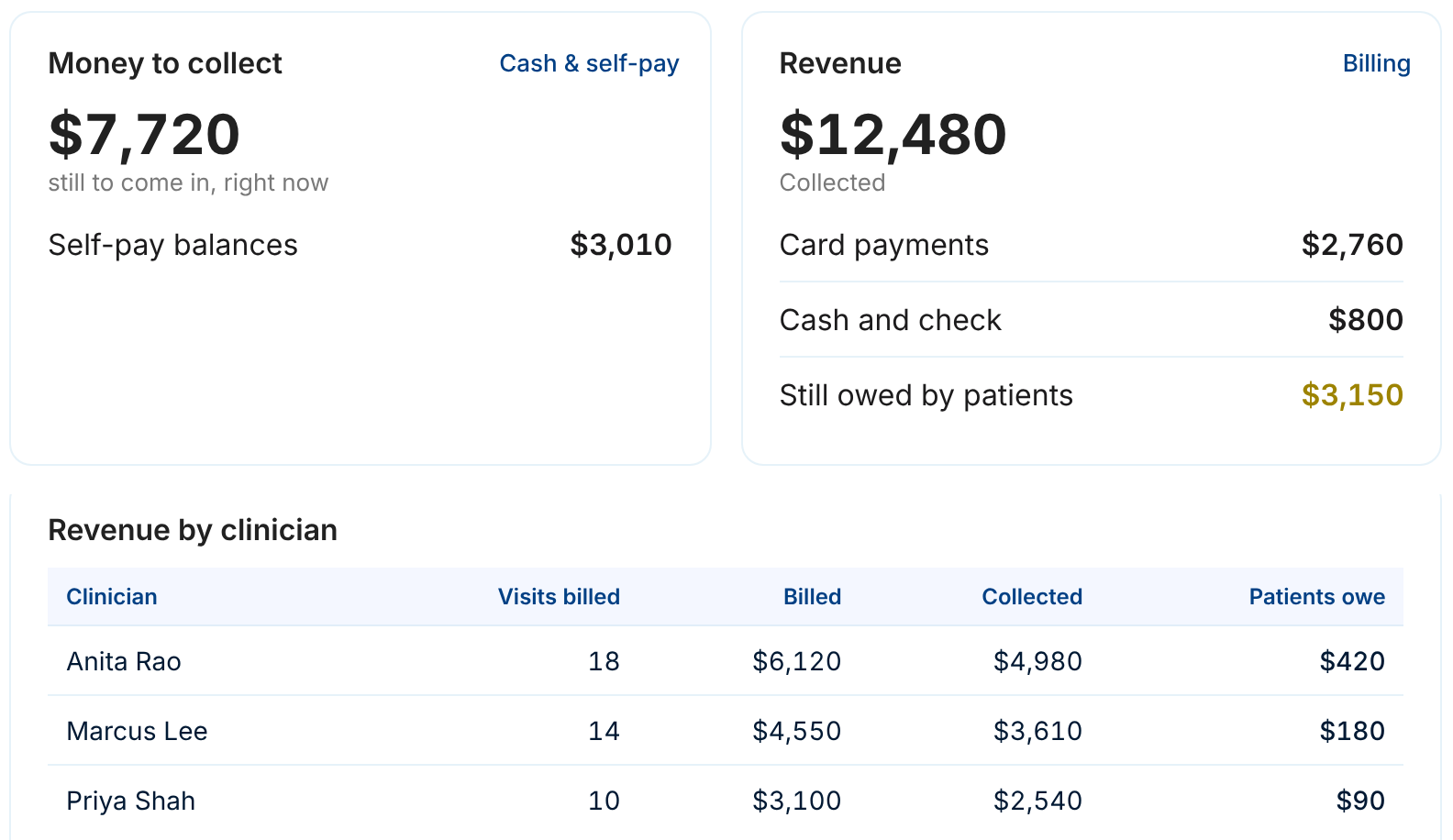
For practice owners, a quick read on what has come in, what is still open and who drives revenue, for any period.
- Revenue received for the period, split by card, cash and check.
- Revenue by clinician: visits billed, amount billed, received and still owed for each clinician.
- Top patients by revenue in the period.
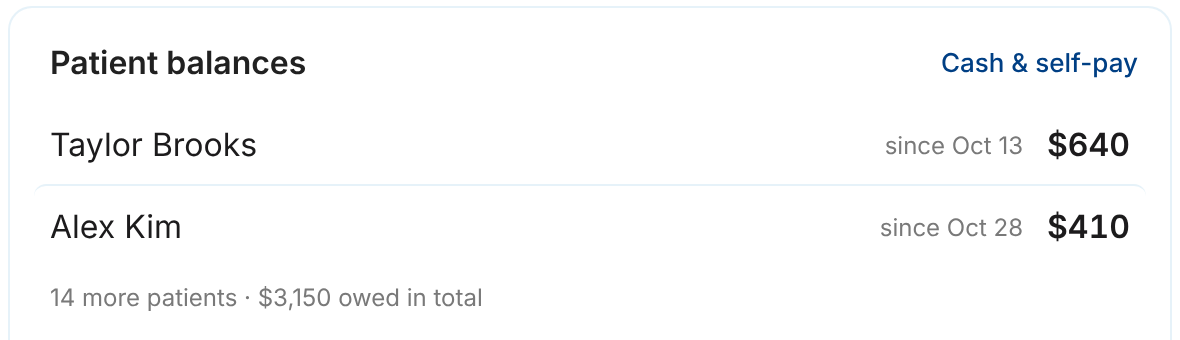
- Patient balances and open co-pays, with how many days each co-pay has waited and a link to the patient's record.
- Money still to come in, as one total with its breakdown.
Everything on the dashboard
Pick the widgets you need. Leave out the ones you don't.
Dashboard
Customize
Add, remove and drag widgets into any order, or reset to the default.
Time range
Today, this week or this month, with change against the last period.
Chart switch
Show chart widgets as bars or a pie.
Visits
Today's visits
Today's schedule with each visit's status, linked to the calendar.
Completed and did not happen
Counts, share of booked visits and a visits-by-day chart.
No-show tracking
Visits marked as no-shows, each linking to the visit in the calendar.
Visits to close
Past visits not yet marked completed, no-show or cancelled.
Patients
New patients
New patients in the period and those waiting for approval.
Follow-ups
Upcoming follow-up visits.
Money (owners and admins)
Revenue received
Card, cash and check payments for the period.
Revenue by clinician
Visits billed, billed, received and owed per clinician.
Top patients by revenue
Highest-revenue patients in the period.
Patient balances
What patients still owe.
Open co-pays
Co-pays still open, with how many days each has waited.
Money still to come in
The total still due, with its breakdown.
Clinic dashboard FAQ
Can each user have their own dashboard layout?
Yes. Each person who signs in picks their own widgets and puts them in their own order. Changing your layout does not change anyone else's. You can reset to the default layout at any time.
Who can see the revenue widgets?
Only owners and admins. Front desk staff and clinicians see the visit and patient widgets, but the money widgets are hidden from them.
How are no-shows counted?
A visit counts as a no-show only when someone on your team marks it as a no-show on the calendar. Othisis does not guess from the time of day, so the number on the dashboard matches your calendar. Each no-show links straight to the visit.
What is "Visits to close"?
It lists past visits that nobody has marked as completed, no-show or cancelled yet. Working through that list keeps your visit counts and records accurate.
Which time ranges can I view?
Today, this week or this month. Each number shows how it changed against the last period of the same length.
Does the dashboard work with the Othisis AI scribe?
Yes. The dashboard is the first screen you see when you sign in to Othisis, the same place you book visits, open patient profiles and record visits with the AI scribe. Visits on your Othisis calendar show up on the dashboard.
See your practice on one screen
Book a live demo and we'll walk you through the dashboard, scheduling and the Othisis AI scribe. Or start free for your first month.